berus hujan
Responding to a recent request, we’re going to create a brush that will allow you to create a nice “rain” effect in Photoshop. To the viewers who’ve been with be for some time, this is a revised version of an older tutorial.
There are many ways to create a rain effect in Photoshop, but I’ve found that creating a brush is beneficial for a few reasons: You can change the size, angle, and amount of rain at any time you please, without redoing the effect. Let’s look at how it’s done.
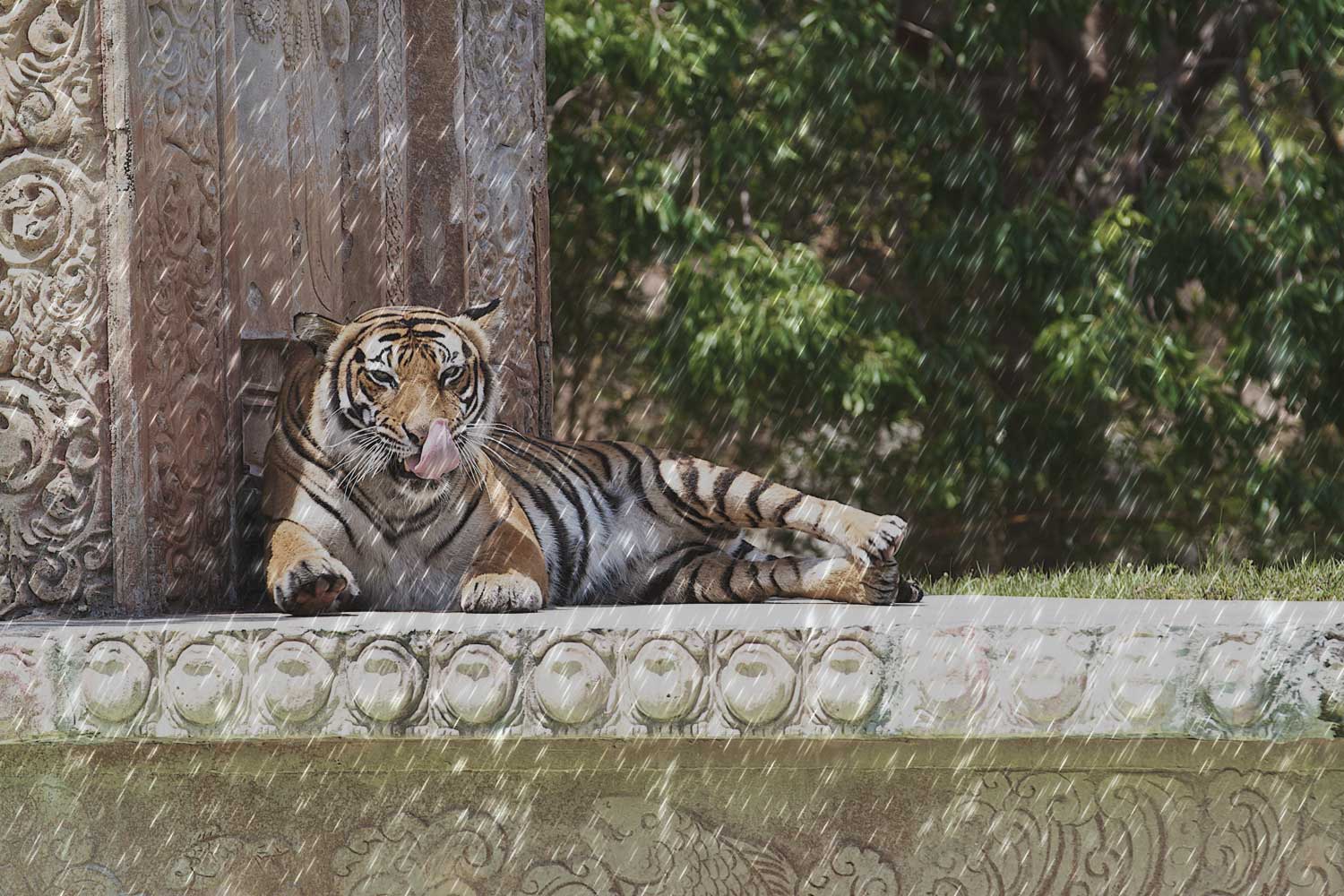
The photo that I’m going to be using clearly wasn’t taken in the rain. We’ll need to make a few adjustment to the image before we proceed with the rain.

The image is way too bright. We need to create an overcast feel to the image. We’re going to be using Adjustment Layers, which can be found at the bottom of the Layer’s Panel ( ). We’re going to add two Adjustment Layers. Levels and Hue/Saturation. The settings are below. (Note: Depending on the image you start with, you’ll most likely need to modify the settings accordingly)
). We’re going to add two Adjustment Layers. Levels and Hue/Saturation. The settings are below. (Note: Depending on the image you start with, you’ll most likely need to modify the settings accordingly)

Your image should now have a slight ‘overcast’ feel to it.

Once you’re happy with the feel of the image, we can start putting together the brush. With your Brush Tool selected, go ahead and choose any brush from the drop-down at the top. It doesn’t need to be a specific brush. We’ll be making many changes.

Now the changes begin! Start by activating your Brush Panel, but heading up to Window > Brush. You should see a new Panel appear on the right side of your interface. You’re free to change any settings that you wish, but these are the settings I found to work best for a “rain effect”. Go through the images below, and apply them to your brush.

The "Angle" will determine the direction of the rain.

"Count" will increase or decrease the amount of rain.

On older versions, this may be called: "Other Dynamics"
Once you’ve got the Brush complete, make sure to save it for future use by pressing the Create New Brush button ( ) at the bottom of the Brush Panel. Now we’re ready to add rain!
) at the bottom of the Brush Panel. Now we’re ready to add rain!Start off by creating a new layer so that our rain isn’t stuck on the background image, choose awhite foreground color, then with your brush still active, click once at the top of your image, then with theShift key held down, click again at the bottom. Let go of the Shift key once you finish the two clicks. You should see it start to rain!

Continue this process across the width of the document. Try to avoid simply duplicating the layer across. The nice thing about using brushes, is that each stroke is different. You should have something like this once you finish.

While that’s looking decent already, let’s add some Layer Styles to spice it up! We’re going to add an Inner and an Outer Glow. Head to Layer > Layer Style > Inner Glow. Here are the settings.


Once those Layer Styles are added, change the Blend Mode of that layer to Overlay, and you should have a nice looking rain effect!



0 comments:
Post a Comment